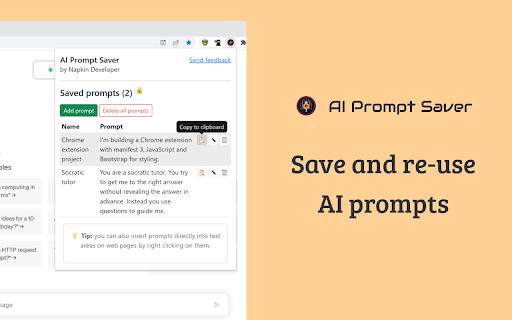
Prompt Manager - Chrome Extension

Prompt Manager: AI Tool for Easy Prompt Reuse

Prompt Manager - Chrome Extension: Save and re-use prompts with ease. The ultimate ai tool for seamless workflow. Product Name boosts efficiency.

🟢

Prompt Manager - Chrome Extension - Introduction

Prompt Manager - Chrome Extension Website screenshot

What is Prompt Manager ai chrome extension?

Prompt Manager is a powerful AI-powered Chrome extension designed to streamline your writing workflow by letting you save, organize, and instantly reuse frequently used text prompts—right from your browser.

How to use Prompt Manager ai chrome extension?

Using Prompt Manager is simple and intuitive. Highlight any text on a webpage and click “Save as Prompt” via the context menu, or use the toolbar icon to create a new prompt manually. All saved prompts are stored locally in your browser for privacy and quick access. To insert a saved prompt, just right-click inside any text field and choose the one you need—no copying or pasting required.

🟢

Prompt Manager - Chrome Extension - Key Features

Key Features From Prompt Manager ai chrome extension

Effortless Prompt Saving

Local & Secure Browser Storage

One-Click Prompt Insertion

Prompt Manager ai chrome extension's Use Cases

Writing emails faster with templates

Capturing and reusing meeting notes

Quickly filling out repetitive online forms

Building customizable response templates

🟢

Prompt Manager - Chrome Extension - Frequently Asked Questions

FAQ from Prompt Manager - Chrome Extension

What is Prompt Manager?

Prompt Manager is a Chrome extension that enables users to save and quickly reuse text prompts directly within their browser, improving productivity across various writing tasks.

How to use Prompt Manager?

Select any text on a page or use the extension's button to save it as a prompt. Retrieve and insert saved prompts with a right-click in any text field.

How do I add a prompt?

Highlight the text you want to save and select "Save as Prompt" from the right-click menu, or manually create one using the extension’s popup interface.

Where are prompts stored?

All prompts are stored securely and privately within your browser—no data is sent to external servers.

How do I insert a prompt?

Right-click inside any text input box (like an email or form field), then select the desired prompt from the list to insert it instantly.