OLOCR

OLOCR: ai tool Product Name, PDF to Text

OLOCR: An ai tool for unlimited OCR. Extract text from images and PDFs with easy uploads. Product Name, powerful results

🟢

OLOCR - Introduction

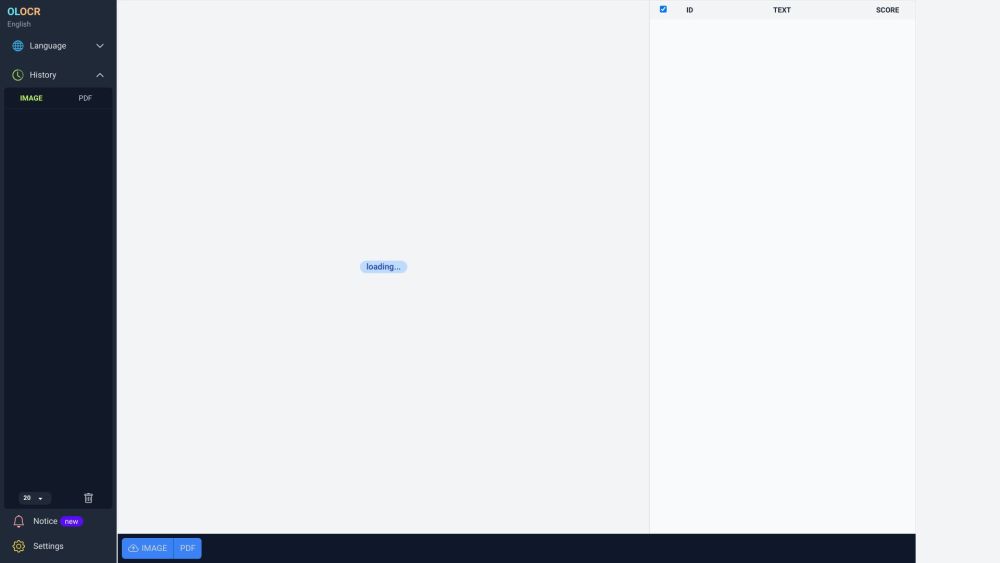
OLOCR website screenshot showing the online image and PDF to text OCR tool

What is OLOCR?

OLOCR is an online OCR tool for converting images and PDFs into text. Using Optical Character Recognition, it extracts written content from uploaded files so you can reuse information without manually typing it out. With unlimited OCR, batch processing, and support for multiple languages, OLOCR provides a browser-based option for everyday document digitization and larger text extraction tasks.

Whether you need to turn a scanned PDF into editable text or capture words from an image, OLOCR brings the process into one online workflow. Upload your documents, choose the appropriate recognition settings, and review the resulting text without installing desktop software.

How to use OLOCR?

Follow these steps to extract text from images or convert PDF content into text with OLOCR:

  1. Open the OLOCR website in your browser.
  2. Select the recognition language that matches the text in your document.
  3. Add one or more images or PDFs through the upload option, or provide a file URL.
  4. Adjust the available OCR settings, including processing speed, to suit your task.
  5. Start text recognition and allow the platform to process your selected files.
  6. Check the extracted content against the source document and correct any recognition errors.
  7. Download the resulting text when needed for editing, research, or other work.

🟢

OLOCR - Key Features

Key Features From OLOCR

OLOCR combines online document processing with tools designed to make repeated OCR tasks easier to manage.

Unlimited Image and PDF OCR

Run text recognition on as many images and PDFs as you need. OLOCR's unlimited OCR offering supports ongoing document conversion rather than a single extraction task.

Browser-Based Text Extraction

Handle OCR directly online without installing additional software. Upload your source files and manage the recognition process through the website.

Batch File Processing

Submit multiple documents together instead of repeating the upload process for every file. Batch OCR is useful when working through collections of scanned pages or images.

Multilingual Recognition

Choose from a broad selection of OCR languages to match your source material. This makes OLOCR useful for extracting text from documents written in different languages.

OCR Activity History

Review previous OCR activity through the platform’s history feature. This helps you keep track of earlier text extraction tasks.

Adjustable OCR Speed

Use the available speed controls to customize how your OCR tasks are processed according to your preferences.

OLOCR Use Cases

Digitizing Scanned Documents

Convert text in scanned paperwork and document images into editable content. The extracted text can be reused in notes, reports, or digital records.

Preparing Text for Translation

Extract wording from foreign-language images or PDFs before moving it into a separate translation workflow. OLOCR handles text recognition rather than the translation itself.

Collecting Research and Reference Material

Capture passages from image-based sources and PDFs for research, analysis, or content preparation, reducing the need to transcribe source material manually.

Supporting Data Entry Workflows

Turn document text into a form that can be reviewed and transferred into digital systems or databases, helping reduce repetitive typing.

  • OLOCR Pricing

    Check OLOCR’s official website for current pricing, access conditions, and service details. The supplied reference below leads to the product changelog rather than a dedicated pricing page.

    OLOCR product updates: https://olocr.com/docs/changelog_en

🟢

OLOCR - Frequently Asked Questions

FAQ from OLOCR

What does OLOCR do?

OLOCR extracts text from images and PDFs using Optical Character Recognition. It offers an online workflow for turning image-based written content into text that you can review and reuse.

How do I convert a PDF to text with OLOCR?

Visit the website, choose the document’s language, and upload your PDF or provide its URL. Configure the available settings, begin recognition, and review the extracted text before downloading it if needed.

How many files can I process?

OLOCR is described as offering unlimited OCR for images and PDFs. Consult the website for current service terms and any applicable file requirements.

Can OLOCR recognize text in several files at once?

Yes. Its batch processing feature allows you to submit multiple files together, making it easier to manage groups of documents.

Which languages does OLOCR support?

OLOCR supports many recognition languages, including English, French, German, Spanish, Portuguese, Arabic, Hindi, Japanese, Korean, Simplified Chinese, and Traditional Chinese. Additional options include Italian, Dutch, Polish, Turkish, Ukrainian, Vietnamese, Tamil, Telugu, Urdu, and Welsh. Check the website’s language selector for the available choices.

Can I review my previous OCR activity?

Yes. OLOCR includes an OCR history feature for reviewing earlier processing activity.

Is the OCR processing speed adjustable?

Yes. The platform provides OCR speed settings that you can adjust when preparing a text recognition task.

Do I need to install software?

No desktop installation is required. OLOCR runs online, allowing you to upload files and extract text through your browser.