Metabase - ChatGPT - Chrome Extension

Metabase - ChatGPT - Chrome Extension: AI Tool

Metabase - ChatGPT - Chrome Extension: An AI tool that enhances Metabase with ChatGPT features—seamless, smart, and official.

🟢

Metabase - ChatGPT - Chrome Extension - Introduction

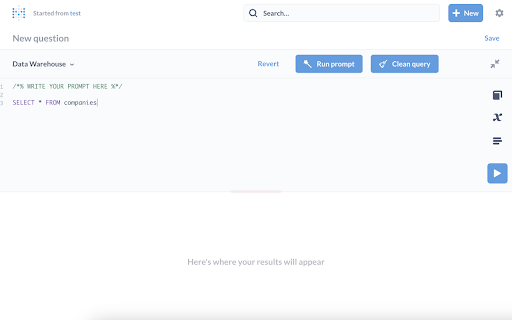
Metabase - ChatGPT - Chrome Extension Website screenshot

What is Metabase - ChatGPT ai chrome extension?

Metabase - ChatGPT - Chrome Extension is an officially supported AI integration that supercharges your Metabase experience using OpenAI's advanced language models—bringing natural-language intelligence directly into your analytics workflow.

How to use Metabase - ChatGPT ai chrome extension?

After installing the extension from the Chrome Web Store, authenticate with a valid OpenAI API key (from a billing-enabled account), then enable and configure the tool within Metabase’s interface—no code changes or backend modifications required.

🟢

Metabase - ChatGPT - Chrome Extension - Key Features

Key Features From Metabase - ChatGPT ai chrome extension

Intelligent error interpretation

Natural-language query generation

SQL syntax optimization & restructuring

Precise visual error localization

Metabase - ChatGPT ai chrome extension's Use Cases

Decoding cryptic database errors in plain English

Converting business questions into accurate SQL prompts

Refining raw queries for performance, readability, or compliance

Instantly identifying problematic lines in failed queries

🟢

Metabase - ChatGPT - Chrome Extension - Frequently Asked Questions

FAQ from Metabase - ChatGPT - Chrome Extension

What is Metabase - ChatGPT?

It’s a purpose-built Chrome extension that embeds ChatGPT-powered intelligence into Metabase—designed to accelerate troubleshooting, boost query authoring efficiency, and lower the barrier to self-service analytics.

How to use Metabase - ChatGPT?

Install the extension, enter your OpenAI API key in the settings panel, and activate it while browsing Metabase dashboards or query editors. The AI tools appear contextually—right where you need them.

How to use the features?

Once configured, simply highlight SQL code or click on error messages in Metabase to trigger AI assistance—no extra steps, no switching tabs, no manual copy-pasting.